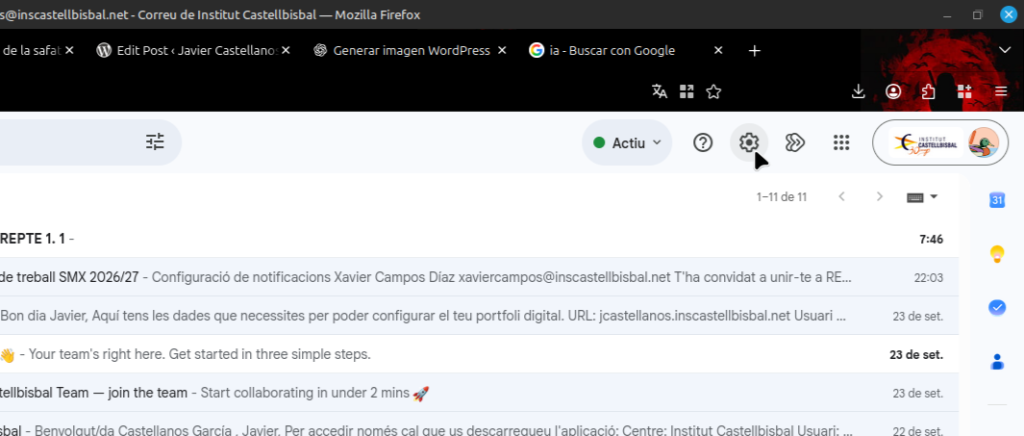
To change the layout of your email, open Gmail on your computer and click the gear icon (Settings) at the top right.
1. Choose how you want to see your emails
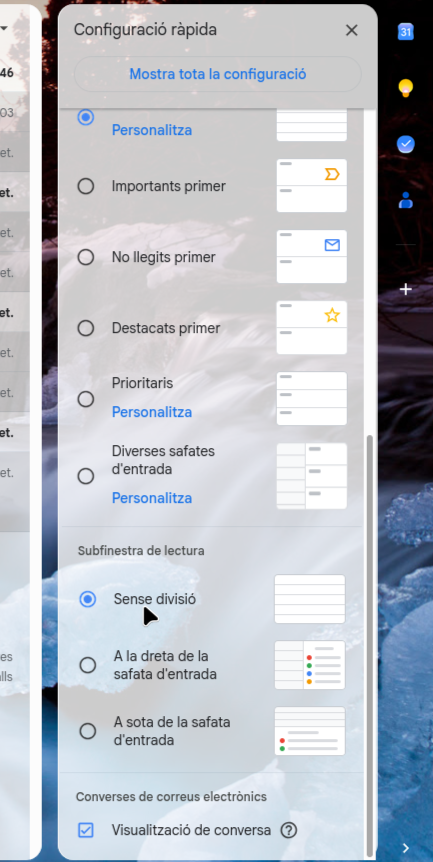
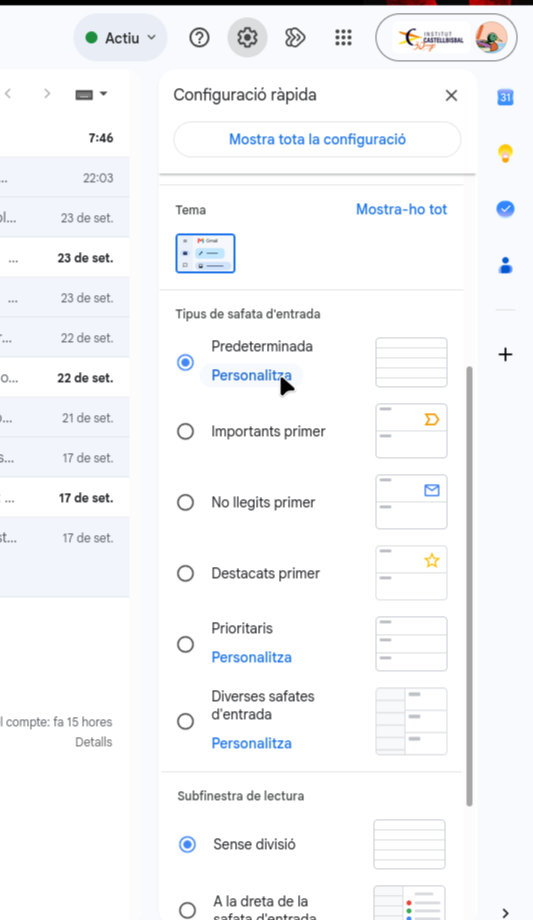
In the Inbox type section, choose an option:
- Default: Splits your emails into tabs (Primary, Promotions, Social) so everything doesn’t get mixed together.
- Unread first: Shows new emails at the top.
- Important first: Puts the messages that Gmail detects as key for you at the very top.
2. Choose your tabs
If you use the Default option, you can add or remove tabs:
- Go to See all settings.
- Go to the Inbox tab.
- Tick or untick the boxes (Primary, Promotions, Updates, etc.).
- Click Save Changes at the very bottom.
3. Read emails faster
If you want to see the content of an email alongside the list without having to open it:
- In the settings menu, scroll down to Reading pane.
- Choose Right of inbox.
Open-ended questions
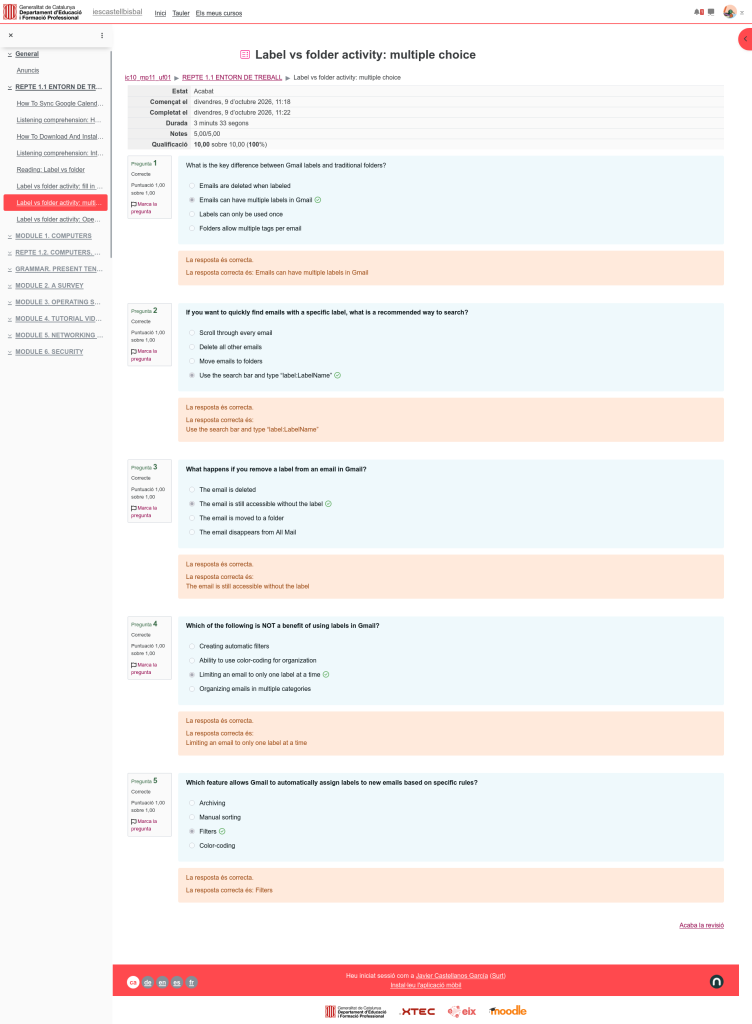
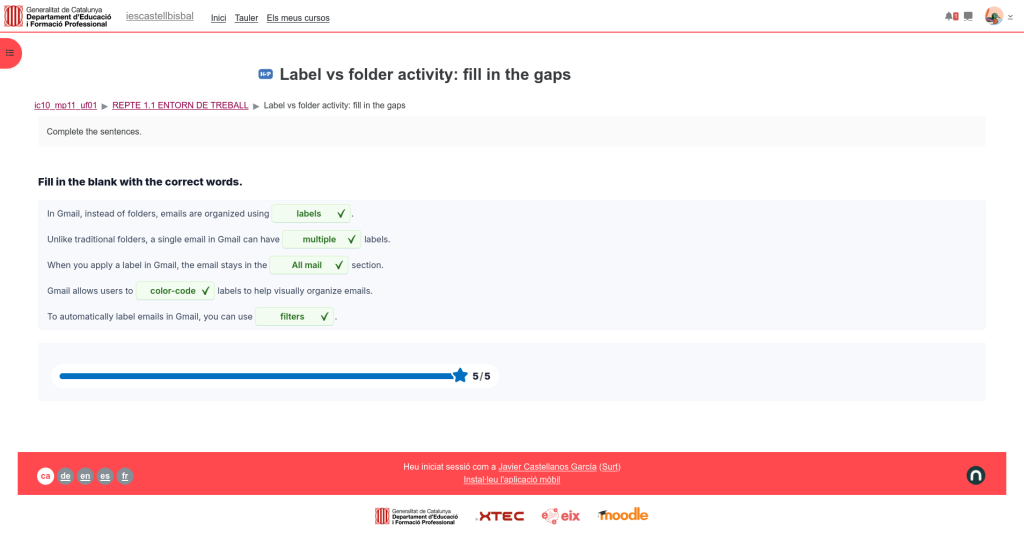
- How Gmail labels improve organization compared to folders:
Gmail labels improve email organization because they allow a single email to have multiple tags assigned to it at the same time, whereas traditional folders restrict an email to existing in only one location. This means an email can simultaneously belong to categories like “Work,” “Projects,” and “Urgent” without requiring duplicate copies. - Process of creating a new label in Gmail and applying it to an email:
To create a new label in Gmail, click the + (plus) icon next to “Labels” in the left-hand menu, type the desired label name, and click Create. To apply the newly created label, open or select the email, click the Labels tag icon in the top action toolbar, check the box for the label, and click Apply. - How color-coding and filters together make managing a busy inbox easier:
Combining color-coding and filters makes managing a busy inbox easier by automatically sorting incoming messages and providing immediate visual cues. Automated filters automatically assign incoming emails to specific categories without manual effort, while distinct label colors allow users to instantly visually identify high-priority or urgent messages at a glance. - Designed email organization structure and implementation:
- Designed Structure: You can organize your email using three main master labels—
1. Action(sub-labels: Urgent, Waiting On, Read Later),2. Projects(sub-labels for active work items), and3. Reference(sub-labels for receipts, travel, and admin). - Applying in Gmail: Create these main labels and sub-labels in your Gmail sidebar, color-code them (e.g., red for Urgent), and build automated filters under Gmail Settings so specific incoming messages are labeled automatically.
- Attaching to Word / WordPress: Copy this entire written response, paste it into a Word document or a new WordPress blog post Gutenberg editor block, format the headings, and publish or save the file to submit with your assignment.
- Designed Structure: You can organize your email using three main master labels—

Leave a Reply